


Google Slides connector
OAuth 2.0Files & DocumentsConnect to Google Slides to create, read, and modify presentations programmatically.
Google Slides connector
-
Install the SDK
Section titled “Install the SDK”Terminal window npm install @scalekit-sdk/nodeTerminal window pip install scalekit -
Set your credentials
Section titled “Set your credentials”Add your Scalekit credentials to your
.envfile. Find values in app.scalekit.com > Developers > API Credentials..env SCALEKIT_ENVIRONMENT_URL=<your-environment-url>SCALEKIT_CLIENT_ID=<your-client-id>SCALEKIT_CLIENT_SECRET=<your-client-secret> -
Set up the connector
Section titled “Set up the connector”Register your Google Slides credentials with Scalekit so it handles the token lifecycle. You do this once per environment.
Dashboard setup steps
Register your Scalekit environment with the Google Slides connector so Scalekit handles the authentication flow and token lifecycle for you. The connection name you create will be used to identify and invoke the connection programmatically. Then complete the configuration in your application as follows:
-
Set up auth redirects
-
In Scalekit dashboard, go to AgentKit > Connections > Create Connection. Find Google Slides and click Create. Click Use your own credentials and copy the redirect URI. It looks like
https://<SCALEKIT_ENVIRONMENT_URL>/sso/v1/oauth/<CONNECTION_ID>/callback.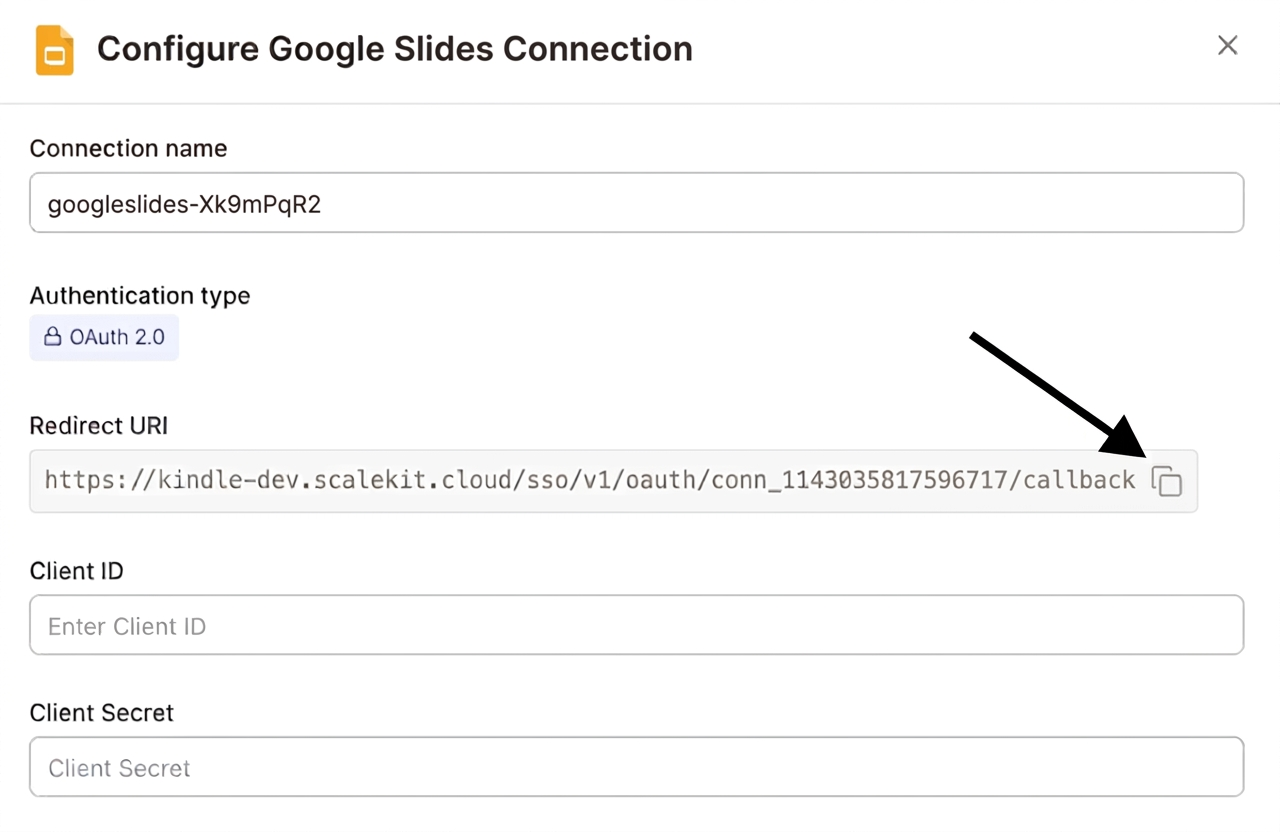
-
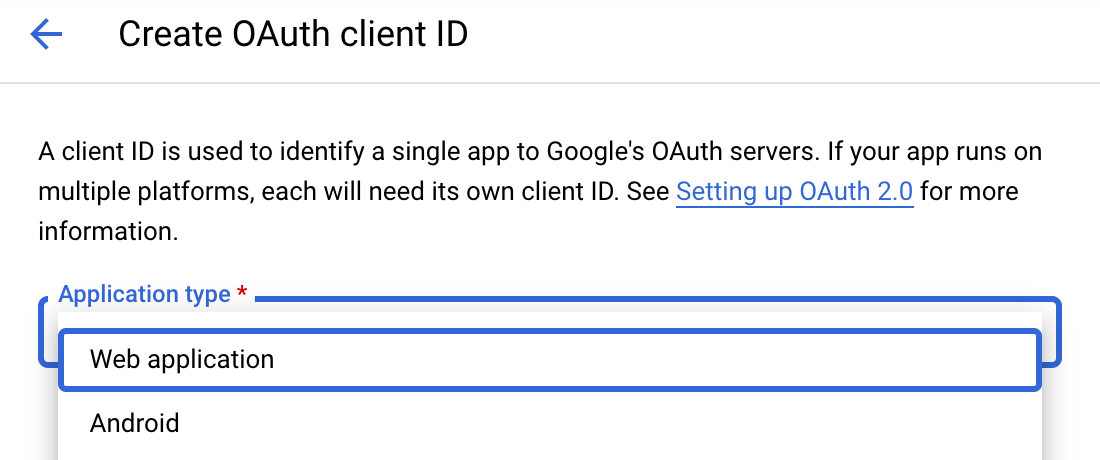
Navigate to Google Cloud Console → APIs & Services → Credentials. Select + Create Credentials, then OAuth client ID. Choose Web application from the Application type menu.
-
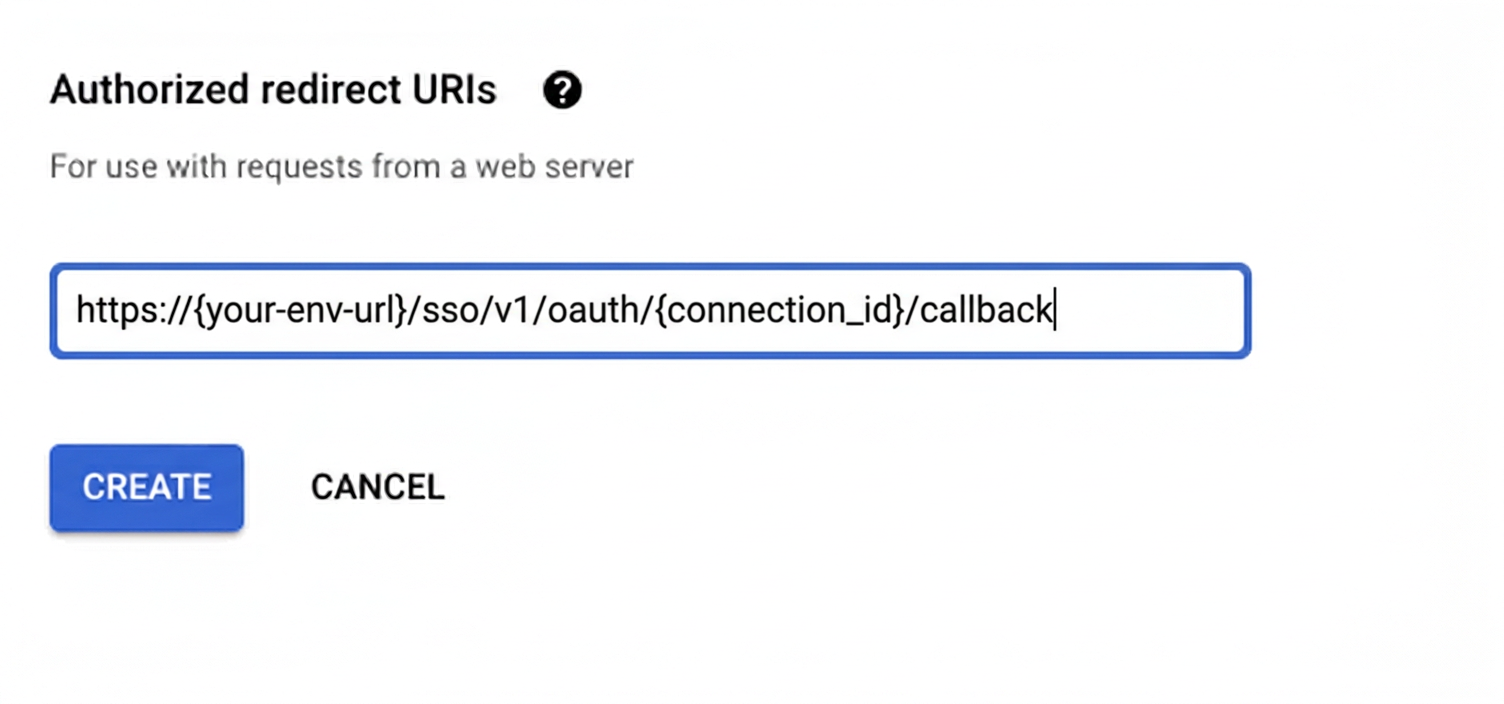
Under Authorized redirect URIs, click + Add URI, paste the redirect URI, and click Create.
-
-
Enable the Google Slides API
- In Google Cloud Console, go to APIs & Services → Library. Search for “Google Slides API” and click Enable.
-
Get client credentials
- Google provides your Client ID and Client Secret after you create the OAuth client ID in step 1.
-
Add credentials in Scalekit
-
In Scalekit dashboard, go to AgentKit > Connections and open the connection you created.
-
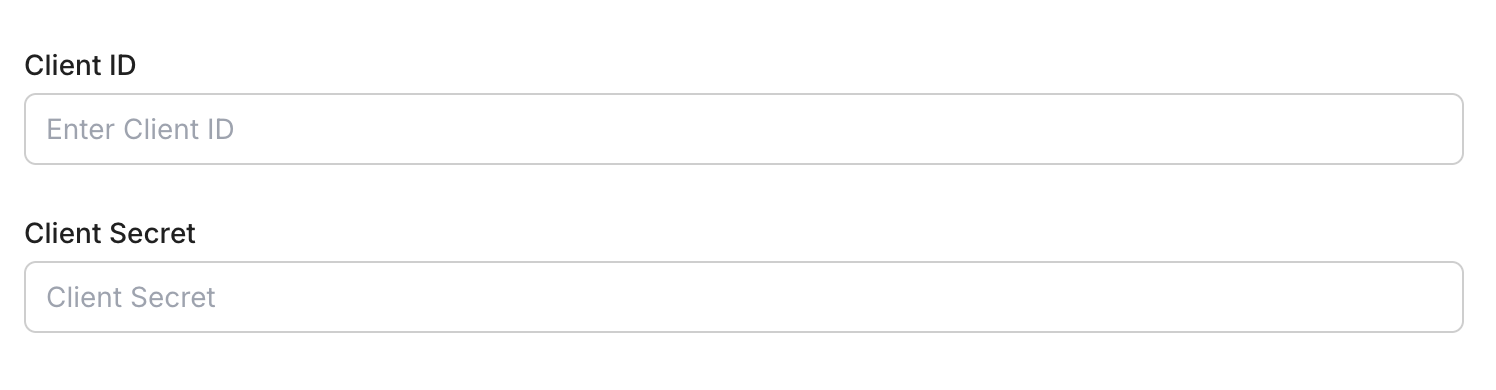
Enter your credentials:
- Client ID (from above)
- Client Secret (from above)
- Permissions (scopes — see Google API Scopes reference)
-
Click Save.
-
-
-
Authorize and make your first call
Section titled “Authorize and make your first call”quickstart.ts import { ScalekitClient } from '@scalekit-sdk/node'import 'dotenv/config'const scalekit = new ScalekitClient(process.env.SCALEKIT_ENV_URL,process.env.SCALEKIT_CLIENT_ID,process.env.SCALEKIT_CLIENT_SECRET,)const actions = scalekit.actionsconst connector = 'googleslides'const identifier = 'user_123'// Generate an authorization link for the userconst { link } = await actions.getAuthorizationLink({ connectionName: connector, identifier })console.log('Authorize Google Slides:', link)process.stdout.write('Press Enter after authorizing...')await new Promise(r => process.stdin.once('data', r))// Make your first callconst result = await actions.executeTool({connector,identifier,toolName: 'googleslides_read_presentation',toolInput: { presentation_id: 'YOUR_PRESENTATION_ID' },})console.log(result)quickstart.py import osfrom scalekit.client import ScalekitClientfrom dotenv import load_dotenvload_dotenv()scalekit_client = ScalekitClient(env_url=os.getenv("SCALEKIT_ENV_URL"),client_id=os.getenv("SCALEKIT_CLIENT_ID"),client_secret=os.getenv("SCALEKIT_CLIENT_SECRET"),)actions = scalekit_client.actionsconnection_name = "googleslides"identifier = "user_123"# Generate an authorization link for the userlink_response = actions.get_authorization_link(connection_name=connection_name,identifier=identifier,)print("Authorize Google Slides:", link_response.link)input("Press Enter after authorizing...")# Make your first callresult = actions.execute_tool(tool_input={"presentation_id":"YOUR_PRESENTATION_ID"},tool_name="googleslides_read_presentation",connection_name=connection_name,identifier=identifier,)print(result)
What you can do
Section titled “What you can do”Connect this agent connector to let your agent:
- Get page thumbnail, page — Generate and retrieve a thumbnail image URL for a single page (slide) in a Google Slides presentation
- Update batch — Apply a batch of update requests to a Google Slides presentation in a single atomic call, such as inserting a slide, inserting text into a shape, creating a table, replacing text, or deleting an object
- Read presentation — Read the complete structure and content of a Google Slides presentation including slides, text, images, shapes, and metadata
- Create presentation — Create a new Google Slides presentation with an optional title
Common workflows
Section titled “Common workflows”Proxy API call
const result = await actions.request({ connectionName: 'googleslides', identifier: 'user_123', path: '/v1/presentations', method: 'GET',});console.log(result);result = actions.request( connection_name='googleslides', identifier='user_123', path="/v1/presentations", method="GET")print(result)Execute a tool
const result = await actions.executeTool({ connector: 'googleslides', identifier: 'user_123', toolName: 'googleslides_create_presentation', toolInput: {},});console.log(result);result = actions.execute_tool( connection_name='googleslides', identifier='user_123', tool_name='googleslides_create_presentation', tool_input={},)print(result)Google OAuth consent screen verification
Before you use your own Google OAuth credentials in production, understand what end users see on Google’s consent screen when they authorize a connected account.
| Audience type | Consent screen behavior | When to use |
|---|---|---|
| Internal | Shows your App Name and logo from Branding settings | Only users in your Google Workspace or Cloud Identity organization can authorize the connector |
| External | Shows {env_name}.scalekit.dev until Google verifies your app | Any user with a Google account can authorize the connector |
Why External is required for most AgentKit connectors:
- Internal restricts authorization to users in your Google Workspace or Cloud Identity organization. Users with
@gmail.comor other Google accounts outside your organization cannot complete OAuth. - External is required when end users outside your organization authorize tool access through connected accounts.
- Organization-managed OAuth clients follow the same rules as personal or developer OAuth clients. Switching to an org-owned client does not bypass Google verification.
- Until Google completes verification of your External app, users see
scalekit.devon the consent screen. After verification, your App Name and logo appear.
During development:
- Add Test users under APIs & Services → OAuth consent screen while publishing status is Testing.
- On unverified apps, users can click Advanced → Go to app (unsafe) to proceed during testing.
- Google Workspace admins may need to allowlist your OAuth client.
For Google’s verification requirements and timeline, refer to Google’s OAuth consent screen verification guide.
Tool list
Section titled “Tool list”Use the exact tool names from the Tool list below when you call execute_tool. If you’re not sure which name to use, list the tools available for the current user first.
googleslides_batch_update_presentation#Apply a batch of update requests to a Google Slides presentation in a single atomic call, such as inserting a slide, inserting text into a shape, creating a table, replacing text, or deleting an object. Returns the presentation ID and one reply per request, in the same order they were submitted.3 params
Apply a batch of update requests to a Google Slides presentation in a single atomic call, such as inserting a slide, inserting text into a shape, creating a table, replacing text, or deleting an object. Returns the presentation ID and one reply per request, in the same order they were submitted.
presentation_idstringrequiredThe ID of the Google Slides presentation to updaterequestsarrayrequiredOrdered list of update requests to apply. Each item is a Slides API Request object, e.g. {"createSlide": {...}} or {"insertText": {...}}required_revision_idstringoptionalIf set, the update is rejected unless the presentation's current revision ID matches this value, protecting against concurrent editsgoogleslides_create_presentation#Create a new Google Slides presentation with an optional title.3 params
Create a new Google Slides presentation with an optional title.
schema_versionstringoptionalOptional schema version to use for tool executiontitlestringoptionalTitle of the new presentationtool_versionstringoptionalOptional tool version to use for executiongoogleslides_get_page#Get the latest version of a single page (slide) within a Google Slides presentation, including its page elements, layout properties, and notes.3 params
Get the latest version of a single page (slide) within a Google Slides presentation, including its page elements, layout properties, and notes.
page_object_idstringrequiredThe object ID of the page (slide) to retrievepresentation_idstringrequiredThe ID of the Google Slides presentation containing the pagefieldsstringoptionalFields to include in the responsegoogleslides_get_page_thumbnail#Generate and retrieve a thumbnail image URL for a single page (slide) in a Google Slides presentation. The returned content URL is temporary, valid for about 30 minutes.4 params
Generate and retrieve a thumbnail image URL for a single page (slide) in a Google Slides presentation. The returned content URL is temporary, valid for about 30 minutes.
page_object_idstringrequiredThe object ID of the page (slide) to generate a thumbnail forpresentation_idstringrequiredThe ID of the Google Slides presentation containing the pagemime_typestringoptionalThe image format of the thumbnailthumbnail_sizestringoptionalThe requested thumbnail image sizegoogleslides_read_presentation#Read the complete structure and content of a Google Slides presentation including slides, text, images, shapes, and metadata.4 params
Read the complete structure and content of a Google Slides presentation including slides, text, images, shapes, and metadata.
presentation_idstringrequiredThe ID of the Google Slides presentation to readfieldsstringoptionalFields to include in the responseschema_versionstringoptionalOptional schema version to use for tool executiontool_versionstringoptionalOptional tool version to use for execution